

Alert channels and the bell
Bidtify can alert you through several channels. The in-app bell works on every plan and is always on. Email and LINE are available from the Pro plan up.
How do I read alerts in the bell?
Section titled “How do I read alerts in the bell?”The bell is in the top bar of every page. The red number is how many alerts are unread (shown as 9+ above nine), and it refreshes on its own every few dozen seconds.
- Click the bell to open the list. Each entry says “N new cases in the area …” with a summary of the first case.
- Click an entry to open the map zoomed to that area.
- Click Mark all read to clear the unread count.
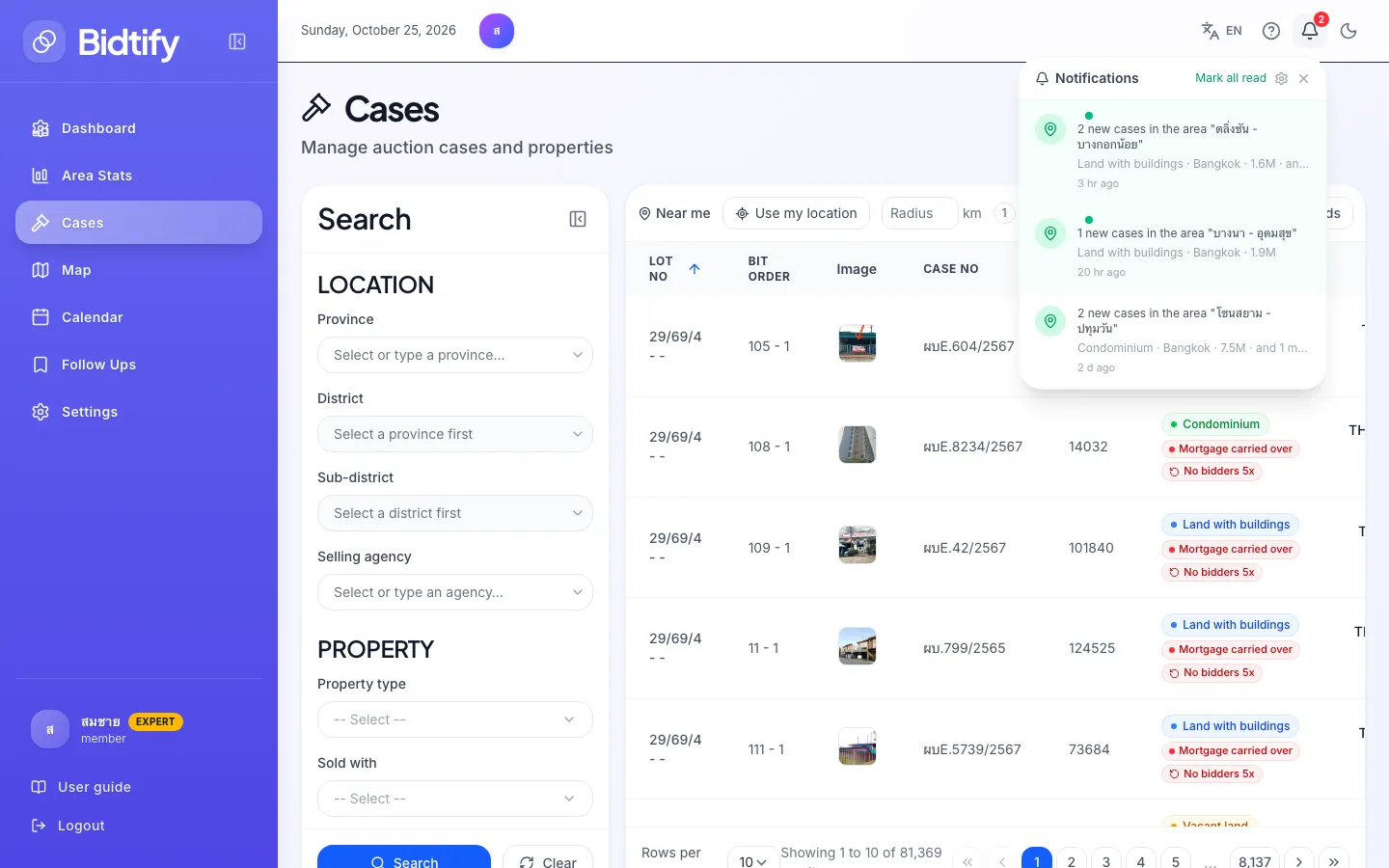
An entry marked Approximate location means that case’s coordinates are estimated. Check the real location before relying on it.
Where do I turn each channel on or off?
Section titled “Where do I turn each channel on or off?”Click the gear in the bell window to open Notification settings.
| Channel | Details |
|---|---|
| New cases sent to the email you signed up with (Pro and above) | |
| LINE | Messages from the Bidtify LINE Official Account; connect LINE first (Pro and above) |
| In-app | The notification bell, always on |
| Mobile app | Alerts on phones signed in to the Bidtify app (Pro and above; available once the app is released) |
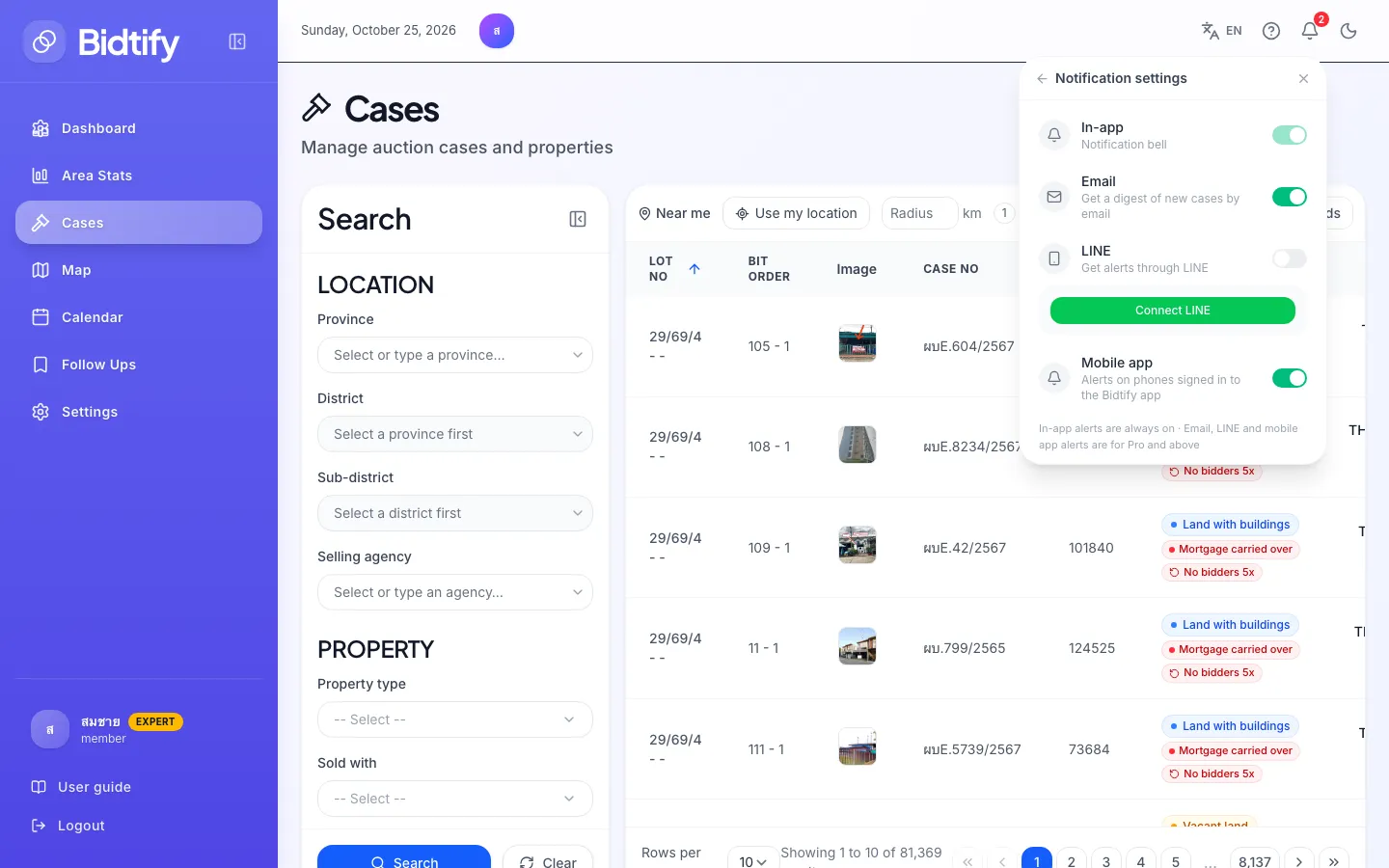
How do I connect LINE to Bidtify?
Section titled “How do I connect LINE to Bidtify?”- In Notification settings, click Connect LINE. Bidtify creates a code for you.
- Click Add OA to add the Bidtify LINE Official Account as a friend.
- Click Copy code and send the code in your chat with the Bidtify LINE OA.
- Come back to Bidtify and click Verify.
- When you see LINE connected, turn the LINE switch on.
If it says “Not connected yet”, check that you sent the exact code in the Bidtify OA chat, then click Verify again.
Click Disconnect to stop LINE alerts or to switch to a different LINE account.
What language are alerts in?
Section titled “What language are alerts in?”Emails and LINE messages use the language you chose in the app (Thai or English). Change it with the language switch in the top bar.