

Get to know the Bidtify screen
This page explains what you see on every Bidtify page: the left menu, the top bar, and how to tell which features need a higher plan.
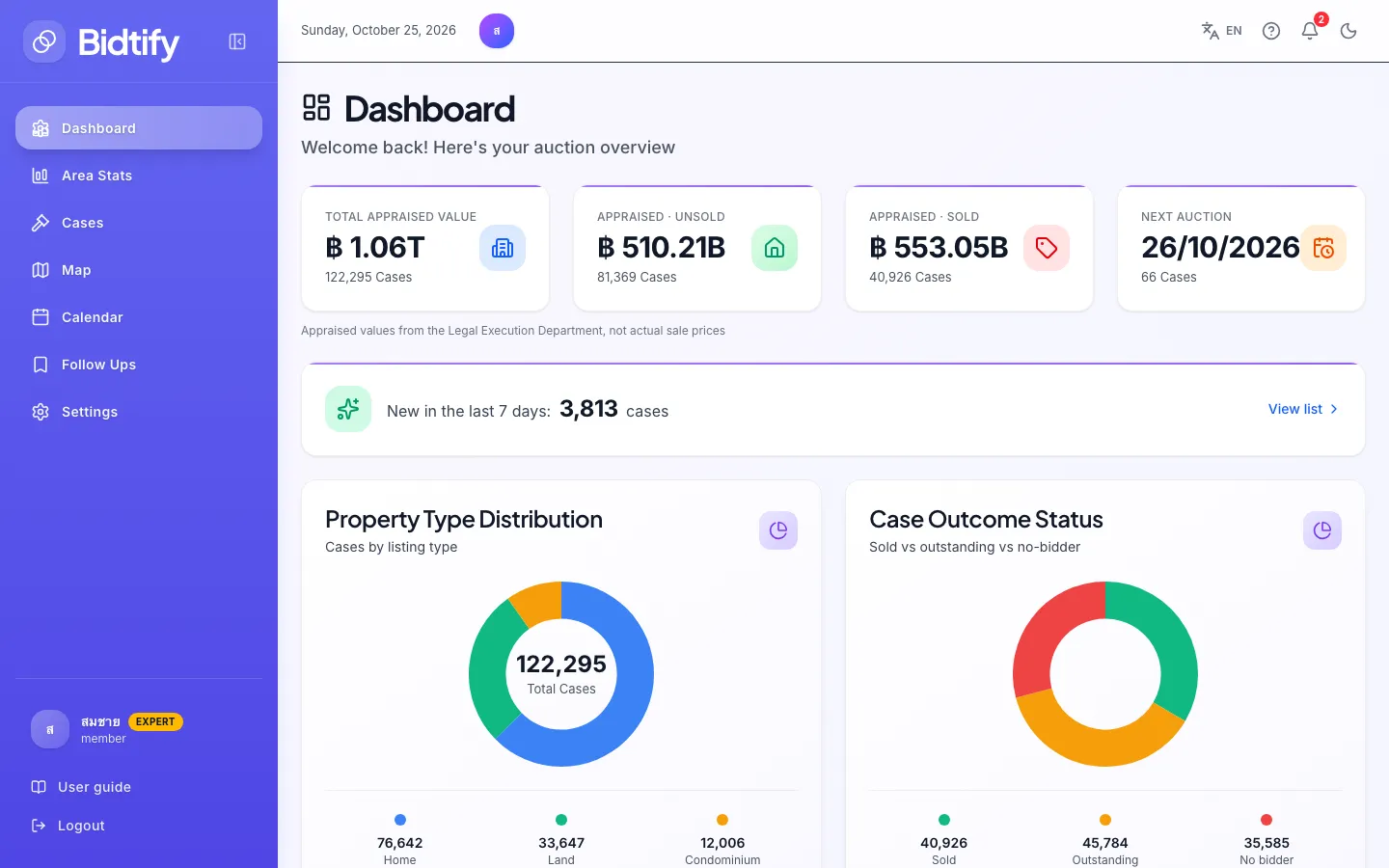
- Main menu: Dashboard, Area Stats, Cases, Map, Calendar and Follow Ups
- Your current plan; click it to open the plans page
- User guide: opens this manual
- Language switch (Thai / EN)
- ? opens the manual page for the screen you are on
- Notification bell; the number is how many are unread
What is in the left menu?
Section titled “What is in the left menu?”| Menu | What it is for |
|---|---|
| Dashboard | An overview of all auction cases. See Dashboard |
| Area Stats | Price per square wa and no-sale rate by area (Expert). See Area Stats |
| Cases | Search and filter cases. See Search with the basic filters |
| Map | Cases on a map, and drawing alert areas. See Case map |
| Calendar | Cases by auction date. See Auction calendar |
| Follow Ups | Cases you follow, with target prices and notes. See Followed cases |
At the bottom of the menu is a badge with your current plan (Free, Pro or Expert). Click it to open the plans page. Below it are User guide, which opens this manual, and Logout.
On a computer, Collapse sidebar shrinks the menu to icons to give you more room. On a phone, the menu is behind the Open menu button at the top left.
What is in the top bar?
Section titled “What is in the top bar?”- Language switch (ไทย / EN) switches the whole app between Thai and English. Your choice is saved to your account and also used for alert emails and LINE messages.
- ? (Help for this page) opens the manual page for the screen you’re on, in the app’s language.
- Notification bell shows new cases in the areas you have drawn. The red number is how many are unread. See Alert channels and the bell.
- Toggle dark mode switches to a dark background, easier on the eyes at night.
How can I tell which features need an upgrade?
Section titled “How can I tell which features need an upgrade?”Features your plan can’t use yet are dimmed and carry a padlock badge.
- A purple PRO badge means the feature is available from the Pro plan up. Hovering shows “Pro plan and above”.
- An amber EXPERT badge means the feature is on the Expert plan only.
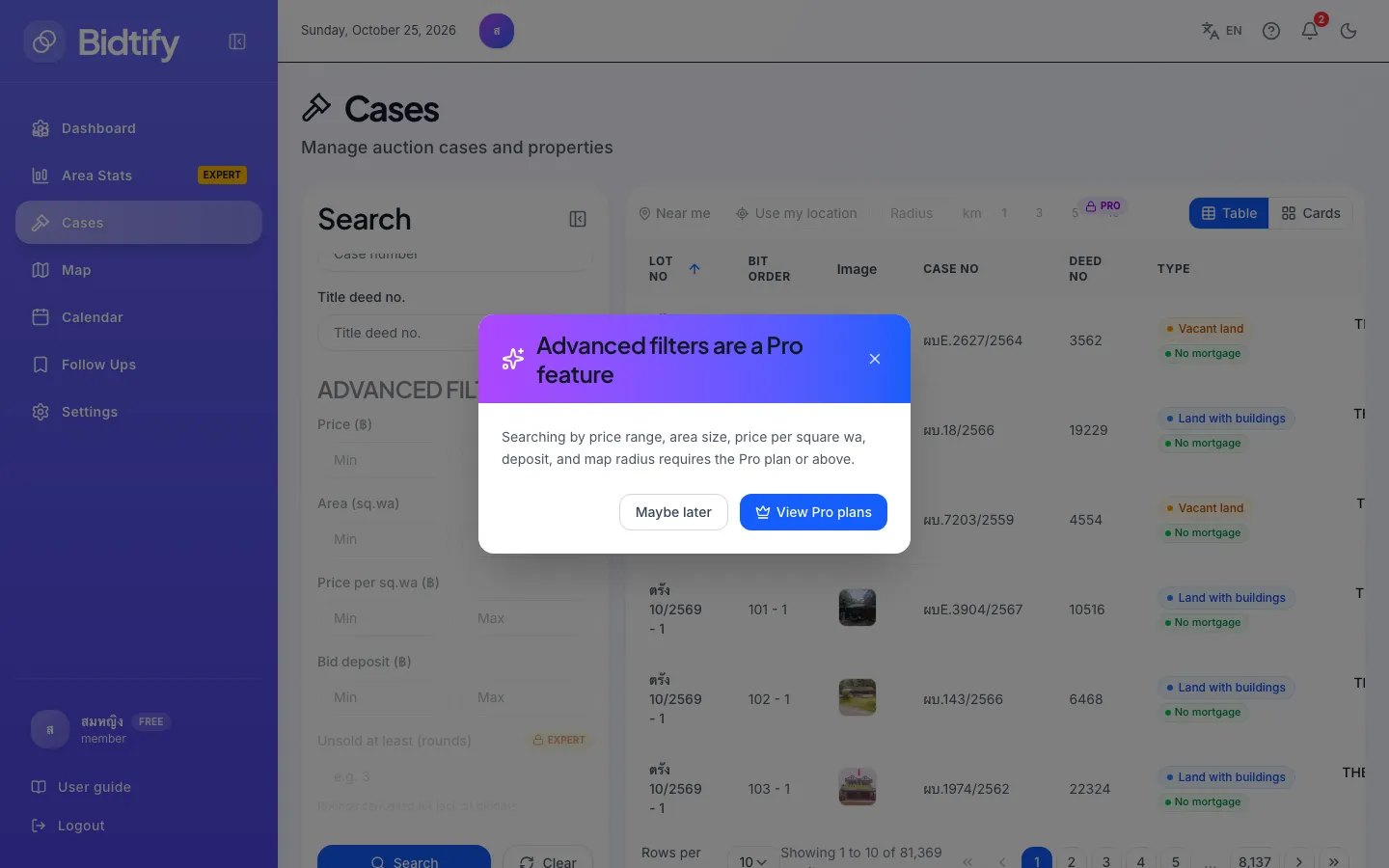
Clicking a locked feature opens a dialog explaining what it does, with View Pro plans (or Expert) and Maybe later buttons. The same dialog appears when you reach a limit, for example when you have drawn or followed as many as your plan allows.
The full comparison is on Compare plans.
What is the compare bar at the bottom?
Section titled “What is the compare bar at the bottom?”When you click Add to comparison on any case, a bar floats at the bottom of every page showing how many cases you have picked, for example “Compare 2/5”. Click Compare to open the comparison table (at least 2 cases needed), or Clear comparison to start over. See Compare cases.