

Sign in and reset your password
You can sign in to Bidtify with your email and password or with your Google account. If you forget your password, you can request a reset link by email yourself.
How do I sign in?
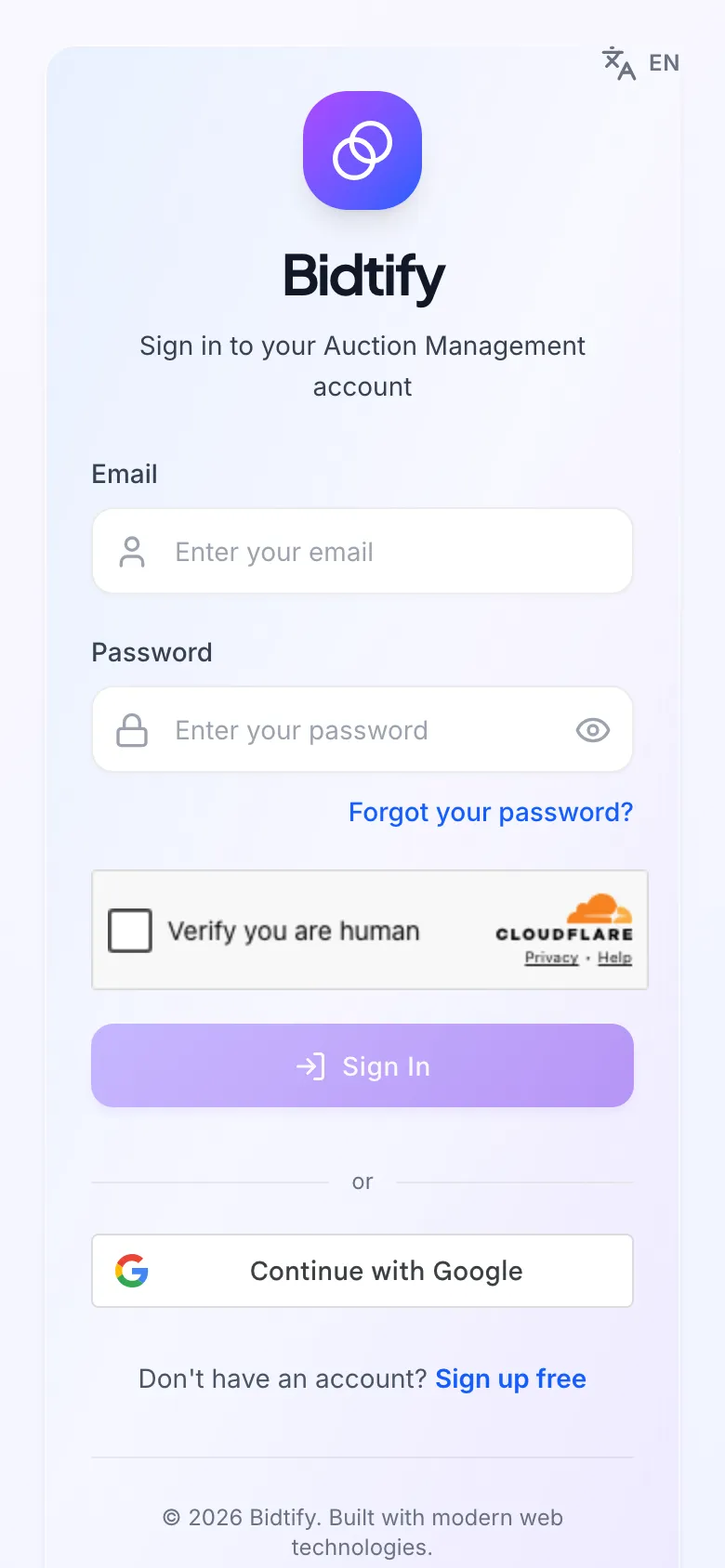
Section titled “How do I sign in?”- Open app.bidtify.com/login.
- Enter your Email and Password (the eye icon shows or hides the password).
- Wait for the Cloudflare check to show success (if it says Verify you are human, tick the box), then click Sign In.
Or click the Google button under or to sign in with your Google account.
I forgot my password. What do I do?
Section titled “I forgot my password. What do I do?”- On the sign-in page, click Forgot your password?
- Enter the email you signed up with and click Send the reset link.
- Open the email from Bidtify and click the link within 1 hour.
- On the Set a new password page, fill in New password and Confirm new password, then save.
- When you see Your new password is set, sign in with the new password.
After a password reset, every other device that was signed in is signed out, in case someone else knew the old password.
What do the sign-in error messages mean?
Section titled “What do the sign-in error messages mean?”| Message | Cause and fix |
|---|---|
| Incorrect email or password. | Check for typos and the keyboard language. If you can’t remember it, use Forgot your password? |
| This account has not verified its email yet. | Click the link in the verification email first, or use Resend the verification email. See Sign up and verify your email. |
| Too many sign-in attempts. | Wait a moment and try again. |
| Your session has expired. | You were inactive for a while, so Bidtify asks you to sign in again for security. |
| Could not connect. | Check your internet connection and try again. |
How do I sign out?
Section titled “How do I sign out?”Click Logout at the bottom of the left menu.